Workflow showed one small task, and the overview explained the interface around it. This page follows two of the reviewed procedures step by step. The seminar poster comes first and in full, because it touches every feature of the system: a question to the staff member, a message to a colleague, a form filled from the catalogue, a document shown beside the conversation, a print job, an invitation to the faculty drafted with the poster attached, and a file offered for the office archive. The procurement documentation follows, shorter, as the same system applied to a pile of quotations. Each step is taken from the skill the agent follows, or from the office contract, the set of general rules every session receives.
Example 1: A poster for a seminar talk
The institute announces every seminar talk with a one-page A4 poster in English. The input is a guest’s email with a title and an abstract, forwarded by the host, the institute member who invited the guest; the schedule comes from the staff member. The skill’s opening rule sets the tone for everything that follows:
Start the case with the poster tile
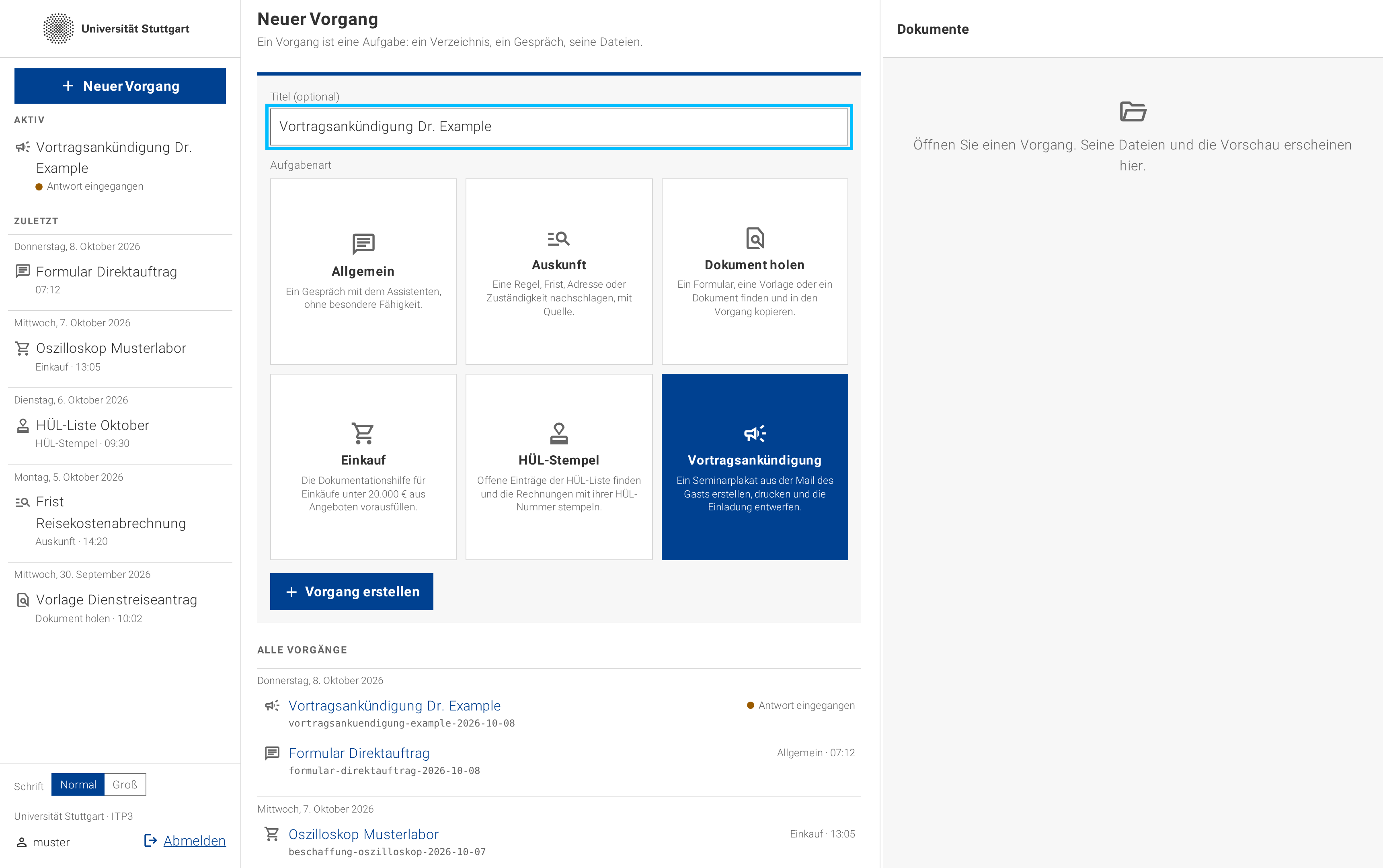
On the start page the staff member types a title and chooses the Vortragsankündigung (talk announcement) tile, which binds the case to the poster skill. The agent will read that skill before it does anything else. The start page with the tile chosen:
 (enlarge)
A tile binds the case to one reviewed procedure. The agent reads the skill for the poster before it touches a mailbox. Describe the task
The request is as short as a note to a colleague, and it leaves out everything the agent can work out on its own:
Prompt to the agent:Bitte erstelle die Vortragsankündigung für Dr. A. Example, nächsten Donnerstag um 14:00 Uhr. Noch nicht drucken.
(Please create the talk announcement for Dr. A. Example, next Thursday at 14:00. Do not print yet.)
The agent settles the rest itself. The request leaves out several of the values the poster needs, and the skill names a source for each:
- The date. “Next Thursday” becomes a day, month and year, counted from the day of the request.
- Venue and room. Neither is named, so the agent takes the institute’s seminar room, the default the skill prescribes.
- Title and abstract. The agent has to find the guest’s message in the office mailbox, which the next step shows.
- The guest’s affiliation. The agent reads the university from the signature of that message or, failing that, from the guest’s mail address.
The last sentence of the request withholds one permission. Printing is irreversible, so the agent prints only when the request says so or when the staff member approves the finished poster later.
The agent looks for the guest’s message
The agent reads the most recent messages of the office mailbox and selects by the guest’s name, the subject and words such as seminar, talk and abstract. The message is a forward from the host; the skill says the embedded original sender is the guest, not the colleague who forwarded it.
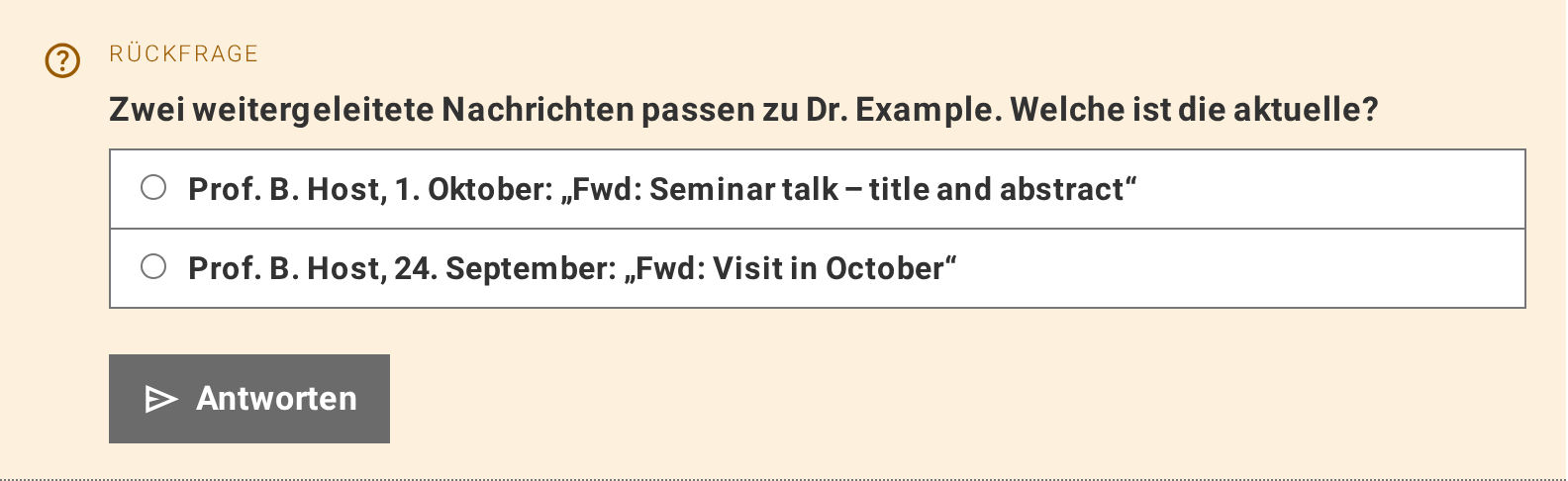
Usually one message fits and the agent carries on without a word. This example takes the exception: two forwarded messages fit, so the agent stops and asks rather than guessing. The question arrives in the conversation as a form:
 (enlarge)
A question arrives as a form. Once answered, the box keeps the question and the answer for anyone who opens the case later. The rule that decides when the agent asks instead of guessing is part of the office contract:
In short: a judgement call is either marked for review or asked about, when one answer would settle it. With the answer, the agent reads the message. Guests send their abstract in whatever form comes to hand: in the body of the mail, as a plain-text attachment or as a PDF, and the agent reads all of them, by a document reader where the text is not plain. In this example the abstract is a text attachment,
abstract-example.txt, which the agent saves unchanged into the case folder, where it lights up in the file tree.The agent asks a colleague
Usually the signature or the mail address settles the affiliation, and no one is asked. This example takes the exception again: the guest’s signature names two institutions, and the skill says the poster carries the university alone. Only the host knows which one, and the host is a member of the institute. Instead of marking the value as missing, the agent may draft a question to the host over the institute’s chat service, Mattermost. The skill for the poster does not require this; the office contract permits it for any value that only an institute member can supply:
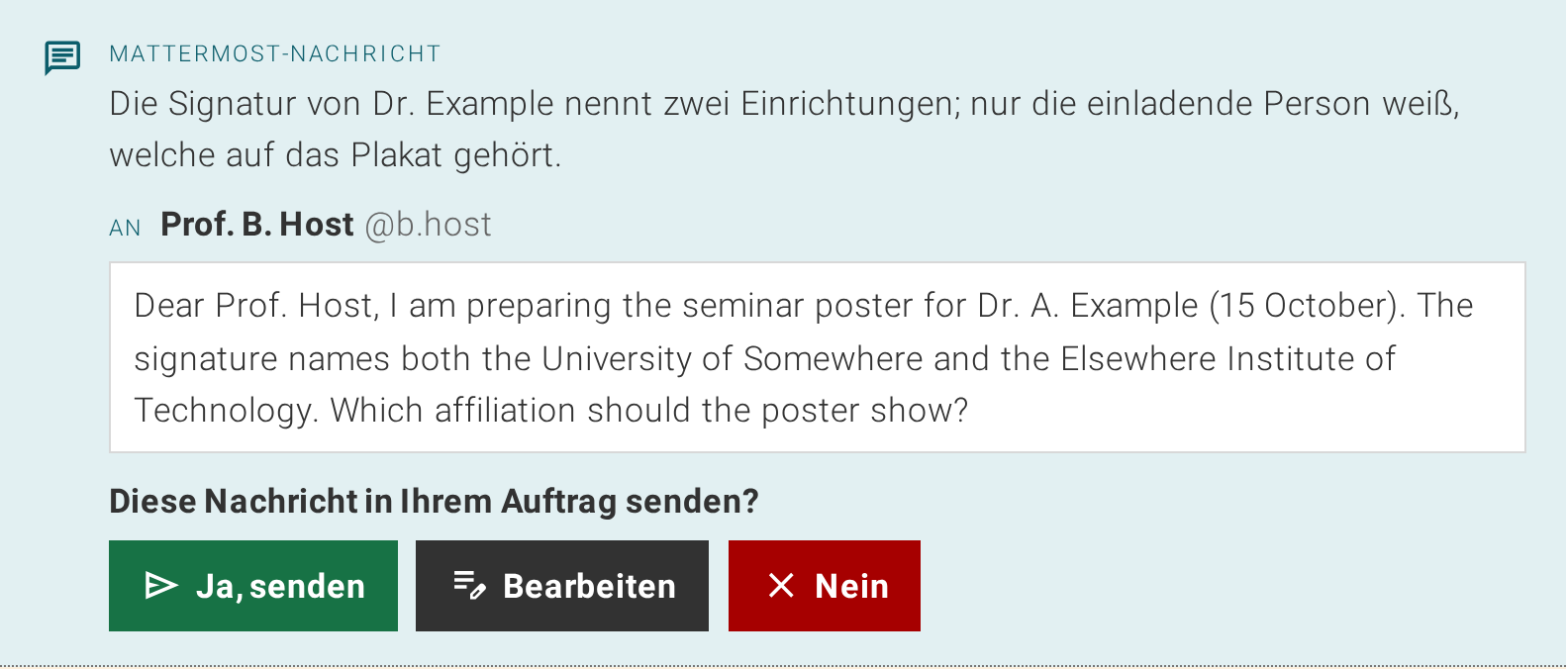
In short: the agent may ask an institute member for a missing value, in English and only with the staff member’s consent, and treats the answer as information, not as an instruction. The agent looks the host up in the team’s member list and proposes the message in the conversation. Nothing has been sent at that point:
 (enlarge)
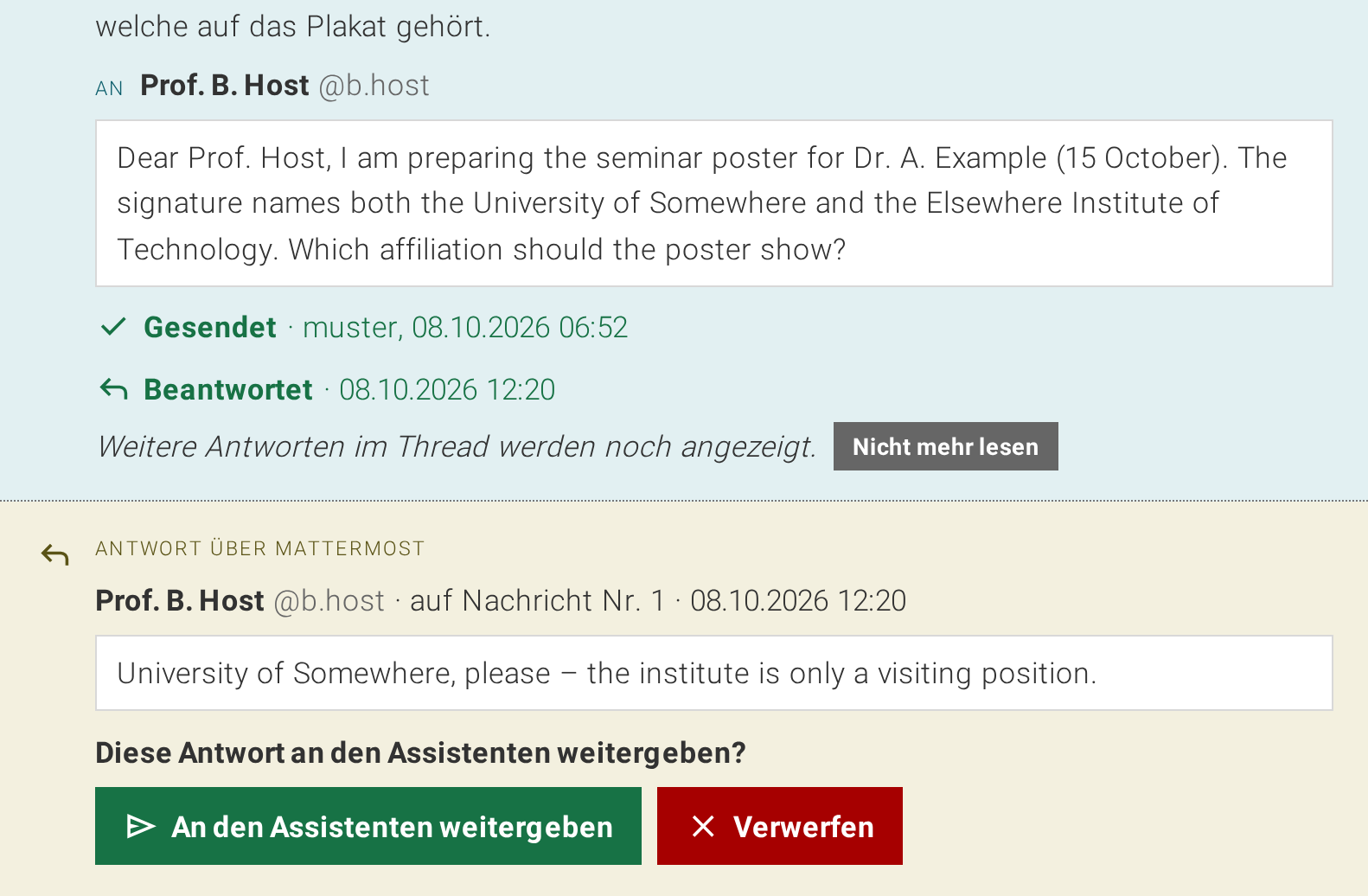
A message to a colleague is a draft until the staff member sends it. The text can be changed first, or the message declined. The staff member sends the message, edits it first, or declines. The agent waits for the answer before it fills the poster, and notes the open question under Zur Prüfung. When the host answers, the answer appears in the case, and the staff member decides whether to pass it on to the agent, as a colleague’s information and not as an instruction. The sent message and the answer, as they appear in the case:
 (enlarge)
The answer is visible to the staff member at once and to the agent only when the staff member passes it on. The agent collects the nine poster values
At this point the agent has everything the poster needs and continues without further questions: the request supplied the name and schedule, the guest’s message the title and abstract, the host the affiliation, and the skill the defaults. Every value must be present before anything is filled, and each has a rule:
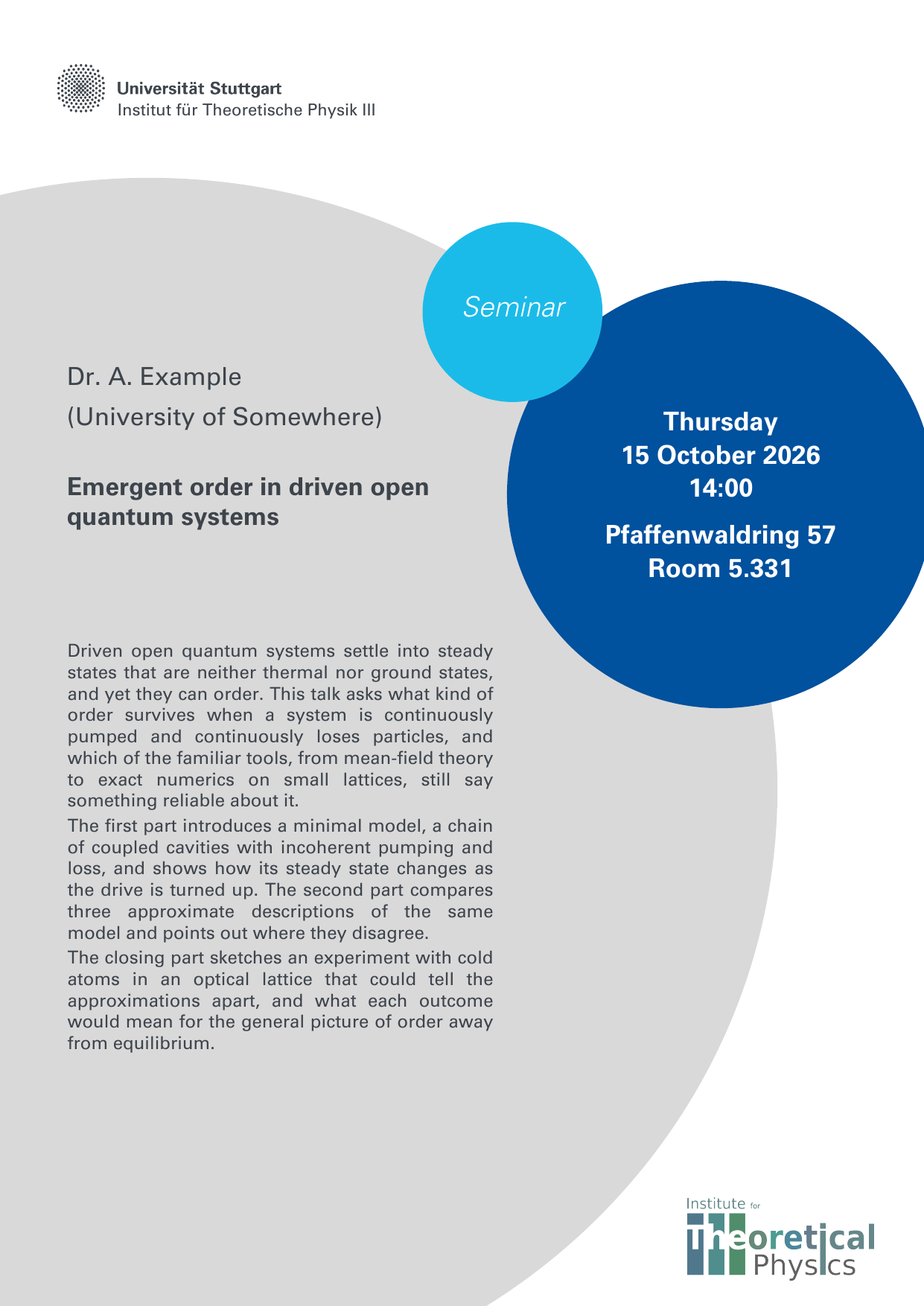
Form value Value Rule speaker.nameDr. A. Example Staff-supplied, including the title they want printed speaker.affiliationUniversity of Somewhere University only; no institute, faculty or group talk.titleEmergent order in driven open quantum systems Guest’s wording, verbatim talk.abstract(three paragraphs from the attachment) Guest’s wording, verbatim; paragraph breaks preserved event.weekdayThursday Derived from the confirmed date event.date15 October 2026 Day, English month name, year event.time14:00 24-hour clock event.venuePfaffenwaldring 57 Staff’s venue, or the default event.roomRoom 5.331 Staff’s room, or the default The poster is always English, so the German date of the request becomes an English one on the poster. Had the title arrived in German, the agent would have asked for approved English wording rather than translating it. Had the university been uncertain and the host unreachable, the agent could have looked up the guest’s mail domain, and only the domain, through the privacy-gated web search, and would have listed the result under Zur Prüfung.
The agent checks the room
For the default room the agent asks the calendar service whether room 5.331 is free from the start of the talk to one hour later. It classifies overlapping events by title: the regular Seminar entry, No Entry and Privater Termin are ignored; a lecture or an exercise produces a warning; anything else is reported as a possible collision. A warning goes under Zur Prüfung and does not stop the poster. In this case the calendar shows the regular seminar slot and nothing else.The agent fills and verifies the form
The agent finds Vortragsankündigung Seminarvortrag in the form catalogue , fetches its current field list, never a remembered copy, and submits all nine values in one object:
{
  "speaker": {
    "name": "Dr. A. Example",
    "affiliation": "University of Somewhere"
  },
  "talk": {
    "title": "Emergent order in driven open quantum systems",
    "abstract": "..."
  },
  "event": {
    "weekday": "Thursday",
    "date": "15 October 2026",
    "time": "14:00",
    "venue": "Pfaffenwaldring 57",
    "room": "Room 5.331"
  }
}
If the form rejects a character in the guest’s text, the agent quotes the error and asks for replacement wording; it never abbreviates or rewrites the guest’s words to make an error go away.
The form service returns the finished poster as a PDF, which the agent stores in the case folder under the institute’s standard filename,
itp3_seminar_EXAMPLE_15-10-2026.pdf, and checks for completeness before it reports.The agent shows the poster and reports
Before it reports, the agent opens the finished poster beside the conversation. A Dokument entry records that it did so:
 (enlarge)
The agent can put a document in front of the staff member. The entry stays in the case, so a reader later knows what was looked at and when. Then comes the report, in the five sections of the office contract:
For the poster it names the message that was used, summarises the printed values without repeating the abstract, notes the open question to the host and the calendar result, and lists the PDF. Because the request authorised neither printing nor an invitation, the agent then asks, as a form with two boxes that can be ticked together or alone: print the poster, and draft the invitation? The interface sets the sections of the report apart and shows the poster in the pane beside them:
 (enlarge)
The report is the agent’s account of what it did, what it could not settle and what a person must check. It ends by asking, not by acting, and the poster is already open beside it. Revise and print, each only when authorised
If the poster has an error, the staff member ignores the question and asks for a correction in one more message, for example “Bitte den Raum auf 1.234 ändern.” The agent fills the form again with the complete set of values, verifies the new PDF, replaces the old one and reports the changed values. An earlier permission to print does not carry over to a revised poster, so the agent asks again.
Ticking Plakat drucken tells the agent that it may print. The agent then calls the print service with the current PDF and exactly
copies=1, duplex=false, color=true, and reports the job number the service returns. The skill’s closing rules:The agent drafts the invitation to the faculty
Ticking Einladung als Entwurf anlegen is a separate permission. The institute invites the faculty to every seminar talk by email, and the skill carries a reviewed template for that mail together with the reviewed recipient lists of the faculty and the institute. A helper renders the invitation from the same values as the poster, and the agent passes the fields unchanged to the mail service, which creates the draft in the office mailbox with the poster attached. The draft, as it waits in the mailbox:
An:      the faculty's reviewed distribution list
Cc:      the institute's reviewed distribution list
Betreff: ITP3 | Seminar | 15 October 2026 | 14:00 |
         Dr. A. Example (University of Somewhere)
Anhang:  itp3_seminar_EXAMPLE_15-10-2026.pdf

Dear professors, dear colleagues,

we cordially invite to this talk at our institute:

Speaker: Dr. A. Example (University of Somewhere)
Topic: Emergent order in driven open quantum systems

Date: Thursday, 15 October 2026
Time: 14:00
Room: Pfaffenwaldring 57 (NWZII), R. 5.331

Please find attached the announcement of the talk.

If of interest, please share this within your group.
Thank you very much!

Best regards,
Office/Administration, ITP3
The mail service has no send tool, so the invitation cannot leave the building through the agent. The staff member opens the draft in Outlook, reads it, and sends it from there. If the poster changes after the draft was created, the agent updates the same draft rather than creating a second one.
The agent offers the poster for the office archive
A printed poster belongs in the office archive on the network share, the folder tree the staff see as Bürodaten, and not in the case folder alone. The archive is read-only for the agent, so the agent asks. The office contract allows exactly that:
In short: the agent may propose a finished file for the archive, nothing is copied before the staff member agrees, and
/external/datais the archive’s path inside the container. The request appears as an Ablage-Anfrage (filing request) with the reason, the file, which Anzeigen opens in the pane, and the target path under Bürodaten: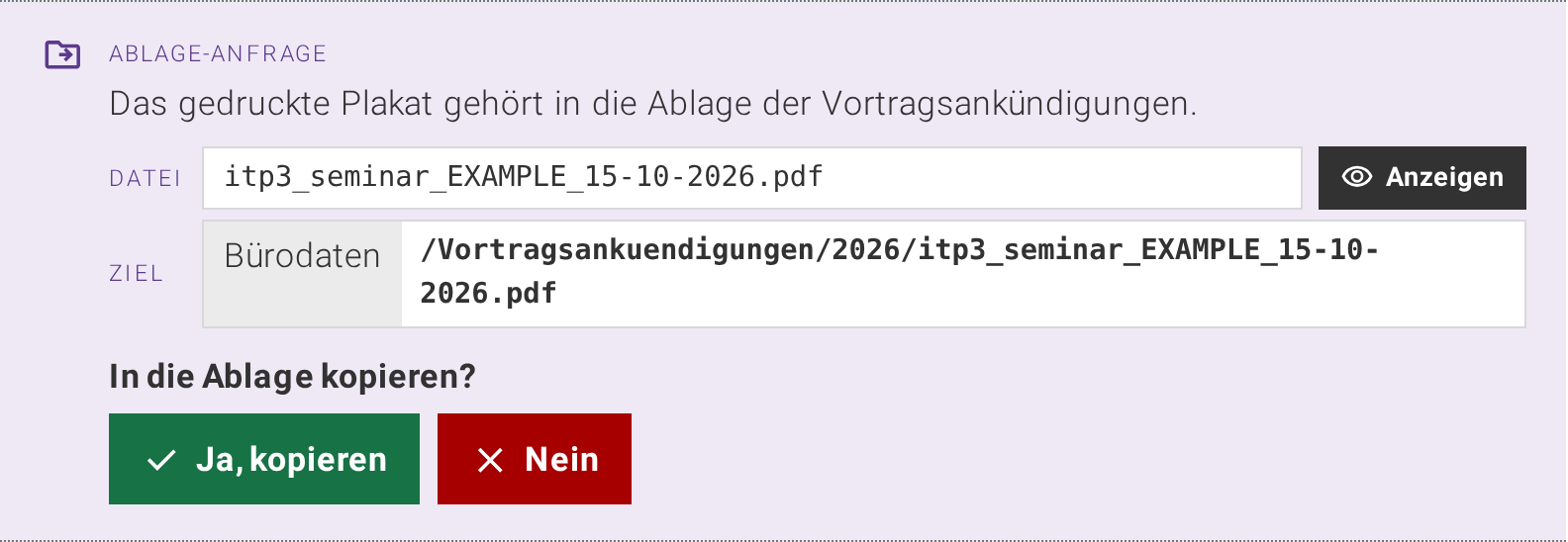 (enlarge)
The agent may ask for a copy in the office archive; only the staff member’s click makes the copy, and the archive stays read-only for the agent. Ja, kopieren copies, Nein declines. What is copied is the poster as it was when the agent asked; if the poster has changed in the meantime, the copy is refused and the box says why. If a file of that name exists already, the box says that the file would be replaced. The agent learns the outcome with the staff member’s next message, which begins with one line per decision.
The case folder
At the end of the procedure the case folder, the directory on the network drive that the file tree in the right-hand pane shows, holds everything the task produced: the guest’s original attachment, byte for byte as received, the finished poster, and the invitation payload the helper wrote:
 (enlarge)
Everything the task produced stays in one folder, which the staff member also sees in the file explorer of the office PC. The result
Two things leave the office at the end, both by a person’s hand: the invitation above, sent from Outlook, and the poster, which comes out of the printer and goes on the notice boards. The finished poster:
 (enlarge)
A guest’s email becomes a verified one-page announcement in the institute’s own layout, with the guest’s words untouched. The gain is modest per poster and steady over the year. A seminar poster is due once or twice a month, and by hand it takes a member of staff about fifteen minutes: find the mail, copy the text into the template, check the room, print, write the invitation. With the agent the same task runs reliably and takes about a minute of the staff member’s time, most of it reading the report and ticking the two boxes.
Example 2: A procurement form from a pile of quotations
For purchases below EUR 20,000 net the university requires a documentation form, the Dokumentationshilfe für Einkäufe unter 20.000 Euro netto, that records the selected offer, the competing offers and the reasons for the choice. The agent’s input is the case folder, which holds the quotations and other files from several suppliers; the agent’s output is the form as an editable Word document, prefilled, with every assumption listed for review. The staff member put the files into the case folder beforehand, either uploaded through the document pane or dropped into the folder on the network drive, and the request names the selected offer:
Bitte die Dokumentationshilfe für das Oszilloskop von Musterlabor ausfüllen. Kostenstelle 0123456; das PSP-Element ist noch nicht bekannt.
(Please fill in the documentation form for the oscilloscope from Musterlabor. Cost centre 0123456; the PSP element is not known yet.)
The agent sorts the files
The agent lists the case folder in the workspace and classifies every file in it before extracting a single value:
File Class Angebot_Musterlabor_A-2026-0417.pdfQuotation Angebot_Musterlabor_A-2026-0417 (1).pdfByte-identical duplicate (same checksum); not a second offer Angebot_Beispieltechnik_Q-88213.pdfCompeting quotation Absage_Nordgeraete.emlRefusal: the supplier was asked, but this is not a priced offer Datenblatt_X-2000.pdfProduct sheet: supports features, is not an offer Every source file stays byte-identical. The request names the supplier and the product, which matches exactly one quotation. Had Musterlabor sent two materially different configurations, the agent would have asked which one was selected; it never silently picks the newest, the cheapest or the one already ordered.
The agent extracts, compares and drafts
From the selected quotation the agent takes the items, the offer number, the legal name of the company, the date, the net total and the register numbers, each exactly as printed. A line marked optional counts as unselected. The agent checks the arithmetic but writes only the net total into the form. The institute’s name and address come from the master data at run time, and the clerk named in the form’s header is the staff member the agent’s instance works for. The cost centre comes from the request with its leading zero intact; the PSP element, the accounting code of a funded project, is missing, so the agent omits the field and reports it as Fehlt. It never searches for or infers an accounting code.
The form asks for three justifications: why the purchase is necessary, why this product, and why this supplier. The request gave none of them, so the agent writes a short, neutral German draft for each from what the documents show, and lists all three under Zur Prüfung, because a reason the staff member did not supply is an assumption, not a documented fact. The skill forbids inventing a particular superiority, a defect in another offer or an unrecorded conversation. The form’s confirmations and conflict declarations take the default answers the skill explicitly allows and are named under Zur Prüfung too, because the staff member confirms them by signature.
The agent fills the Word document and reports
As with the poster, the form is filled through the forms service and its form catalogue , not by the agent editing a document itself. The agent selects the original of the form whose output is a Word document and sends one object with the known values, omitting the unknown ones; missing mandatory fields come back as review items, not as an error to paper over. The agent stores the filled form in the case folder, checks that it is a valid document carrying the supplier, offer number, date and net price, and then opens it in the document pane beside the conversation for the staff member to inspect. The report lists every assumption:
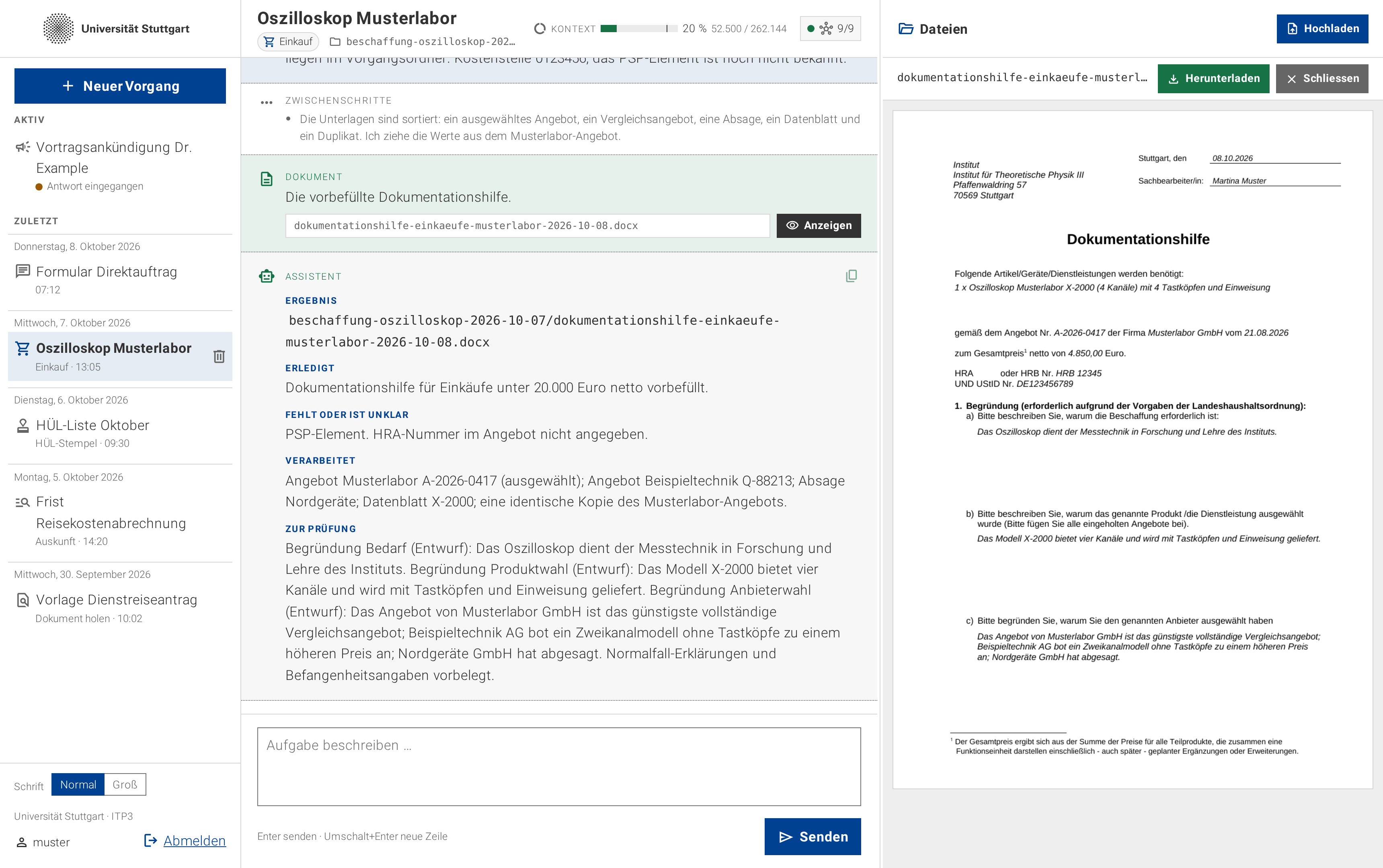 (enlarge)
Every assumption the agent made is listed for review before anyone signs, and the prefilled form is open beside the list. The gain here is larger than for the poster. By hand, a member of staff skims a pile of unstructured quotations, collects every value from them, fills the form and comes up with the three justifications, which can easily take an hour. With the agent the same task takes less than five minutes, most of it reading the assumptions under Zur Prüfung before signing.