The overview explained why every part of the system runs on institute hardware and why the model alone is not the agent. This page shows the system from the staff member’s chair, with one small task as the running example: a university form is to be found in the catalogue and prefilled with the institute’s address and the name of its head, so that the staff member can fill in the rest by hand. The task is a plain conversation with the agent, not one of the reviewed procedures; Examples follow one of those, the seminar poster, in full, and the overview explains the interface element by element on one annotated screenshot.
One task from start to finish
The steps below take a request from the first click to a finished file. Nothing in them requires the staff member to know what an agent is.
Sign in and start a case
The staff member signs in to the office interface with a name and a password and lands on the start page. The page asks for two things: an optional title, and the kind of task, chosen from a row of tiles. Each tile except the first is one reviewed procedure the agent knows, shown under a plain German name with a one-line description: looking up a rule or an address with its source, fetching a form or template into the case, the procurement documentation, the invoice stamp, the seminar poster. The first tile, Allgemein, is a plain conversation without a procedure. It is selected until another tile is chosen, and it is the right one for this task:
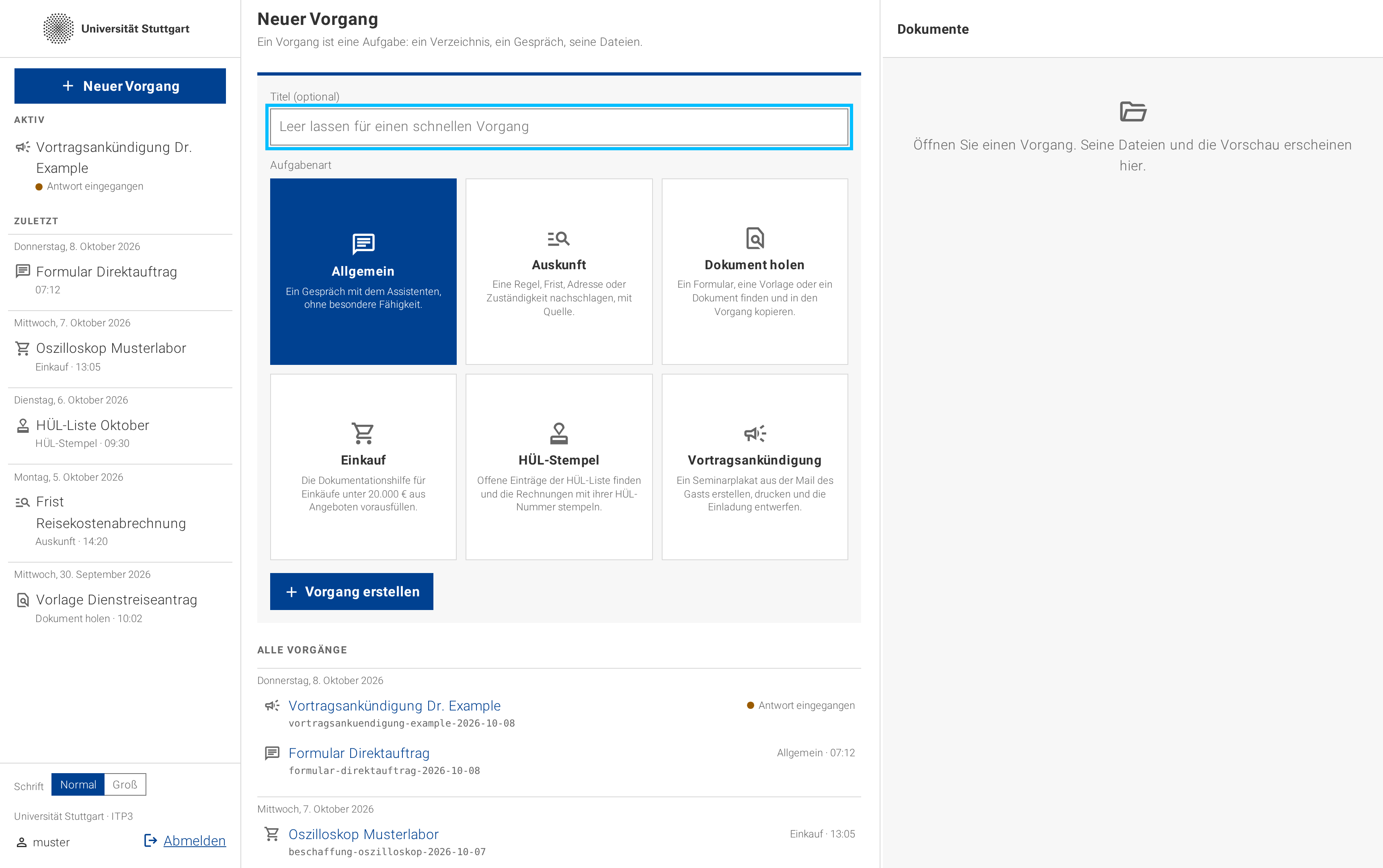 (enlarge)
A case starts with a tile. Each tile but the first is one reviewed procedure the agent knows; the first is a plain conversation. The button Vorgang erstellen opens a Vorgang, a case. A case is one administrative task, and it owns two things that stay together: the conversation with the agent, questions and answers included, and a folder in the staff member’s workspace with the files that end up in it. The folder is created at that moment, named after the title and the day’s date, so it is on the network drive before the agent has done anything, and files can be dropped into it or uploaded straight away. If the title field was left empty, the folder is named after the kind of task and the date instead.
Describe the task
The staff member describes the task in ordinary words, in the field at the foot of the conversation. Enter sends; Shift+Enter starts a new line. The request for this task:
Prompt to the agent:Bitte das Formular „Vorbereitung von Direktaufträgen“ heraussuchen und Institut und Institutsleitung aus den Stammdaten eintragen. Den Rest fülle ich selbst aus.
(Please find the form “Preparation of direct orders” and enter the institute and its head from the master data. I will fill in the rest myself.)
The request names what the agent needs and nothing else: which form, which fields, and that the rest stays empty. If the task needs a file the agent cannot find on its own, the Hochladen button in the document pane puts the file into the case folder.
Watch the agent work
The conversation shows the staff member’s input and the agent’s answers, and collapses everything in between into one Arbeitet … (working) line with two counts: the tools the agent has used so far, and the tokens it has spent, the units of text in which a model’s work is counted. Behind that line the agent searches the form catalogue, fetches the form’s current field list, reads the institute’s master data and fills the two fields. A remark the agent makes on the way stays visible above the line as a Zwischenschritt. Such intermediate steps can be instructive, because they show where the agent is heading, but they can be ignored altogether: what counts is the report at the end. A turn that is going the wrong way can be stopped with Abbrechen. The case while the agent works:
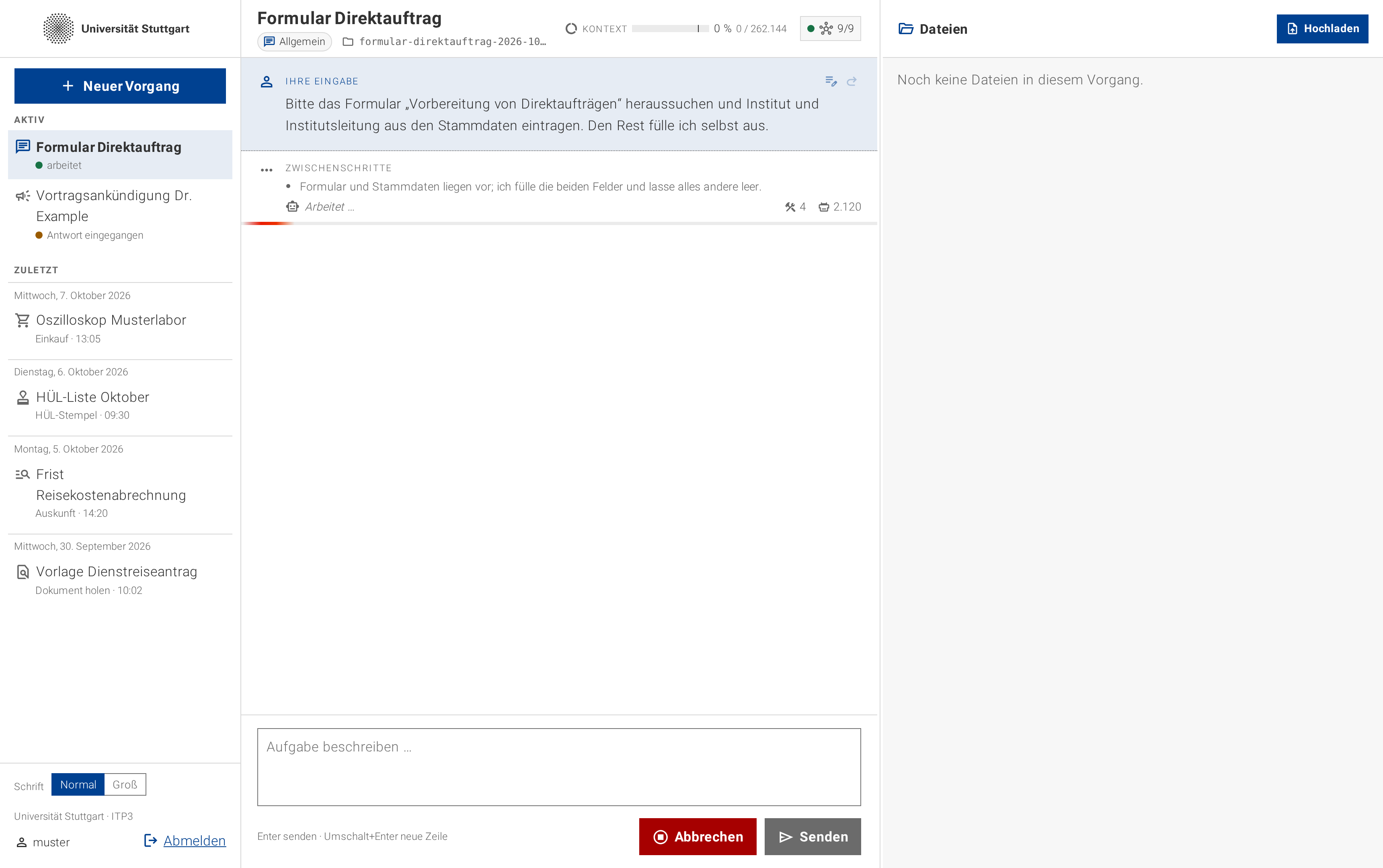 (enlarge)
One case keeps the request, the progress and the files together. The agent’s tool calls collapse into a single line with two counts, so the conversation shows what was asked and what was answered, not every step in between. Read the report and the result
Every task ends with a short report in five named sections: Erledigt (what was done), Verarbeitet (which files and sources were used), Fehlt oder ist unklar (what is missing or unclear), Zur Prüfung (what a person must check) and Ergebnis (the files produced). The interface recognises the report and sets each section apart. Here the agent reports that the form is prefilled as an editable Word document with the institute’s address and the head of the institute, and that every other field is empty, as asked. The finished case:
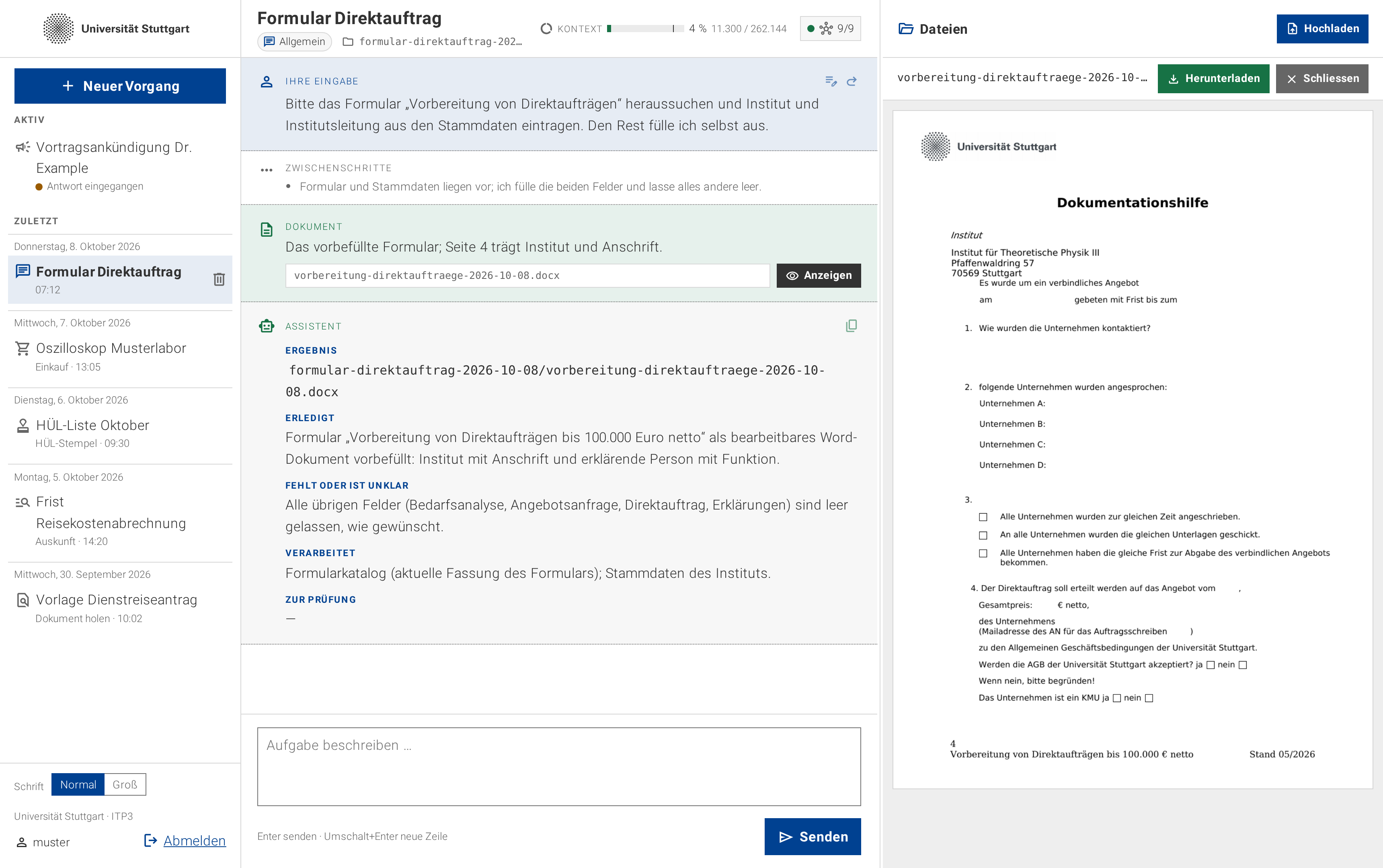 (enlarge)
The report says what was done, what was used, what is missing and what a person must check. The form opens beside it, at the page the agent chose. The agent has also opened the document beside the conversation. A Dokument entry in the conversation records that it did so, with the page it chose, and the right-hand pane shows the form at that page. A report, or any other answer, can be carried elsewhere with the copy symbol at the top right of the entry, which copies the text so that headings and lists survive the paste into Outlook or Word.
Find the file
The case folder is a directory on the network drive, visible in the file explorer of the office PC, and the file tree in the right-hand pane shows the same folder:
formular-direktauftrag-2026-10-08/
  vorbereitung-direktauftraege-2026-10-08.docx
From here the form is an ordinary Word document. The staff member opens it, fills in the purchase it is about, and signs it. PDFs, Word, Excel and PowerPoint files, OpenDocument and RTF files, images, Markdown and plain text all open in the pane as well, and every file can be downloaded.
Skills: the recurring procedures
The task above ran under the Allgemein tile, which means without a skill: the agent had its tools, the office contract and the request, and worked out the steps itself. That is fine for a one-off job. The office’s recurring jobs, the seminar poster, the procurement documentation, the invoice stamp, are not left to improvisation. Each of them is a skill: a written procedure that says, step by step, which tool to call, what to take from where, what to check, when to stop and ask, and how to report. The tiles on the start page are these skills under their German names, and choosing a tile binds the case to its procedure, which the agent reads before it does anything else. Examples follow the poster skill in full.
A skill is a text file, with a few helper scripts and templates beside it. The agent reads the text as a person would read a work instruction, and the text leaves nothing to guess. One passage of the poster skill, the step that fills the form, shows the level of detail:
The difference from the free conversation is reliability. Under a skill the same job runs the same way every time: the same tool, the same checks, the same report, and the same questions to the staff member at the same points. Under Allgemein the agent may take a sensible route or an odd one, which is acceptable for finding a form and filling two fields, and not for a poster that goes to the printer.
Because a skill is text, improving the agent at a task means editing a procedure, not retraining a model. A maintainer reads where a run went wrong, rewrites the step, and tries the job again. A reviewed skill reaches staff as a file copy and a restart of their container, and its tile appears on the start page once the skill is deployed. How that loop can run across all the institute’s agents, with the agents themselves reporting where a procedure failed them, is the subject of Evolving skills .